
IPTV Basics5 min read
Smooth IPTV Streaming at Home: Speed, Wi-Fi and Buffering Explained
Most buffering starts at home. Here is how internet speed, Wi-Fi, devices and household traffic affect IPTV streaming — and what to change first.
By CatchON TV Team
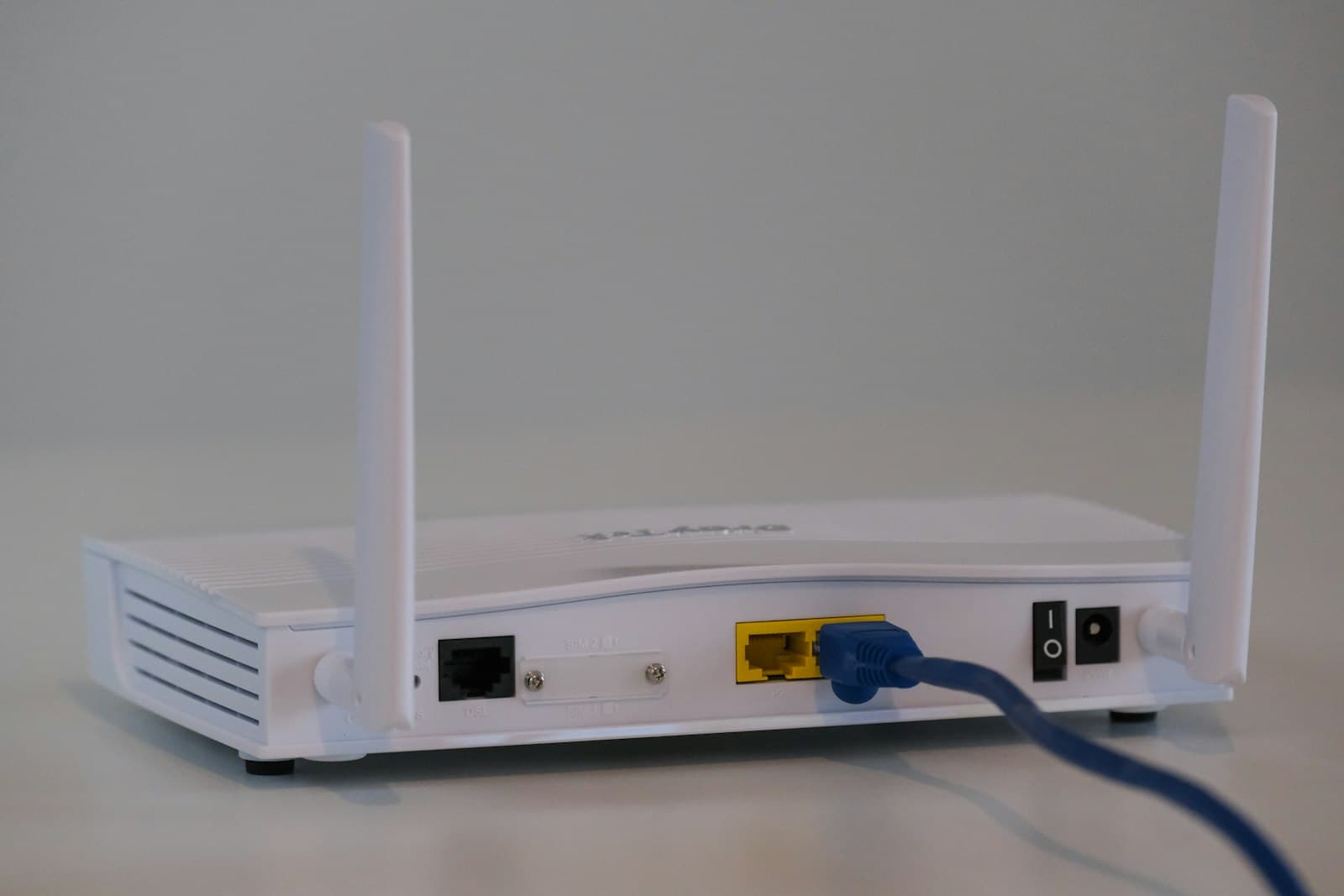
When IPTV streaming stutters, the natural instinct is to blame the service. Sometimes that is right. But very often the cause is closer to home: a router in the wrong place, a crowded Wi-Fi band, an ageing streaming stick or a household where five other devices are downloading at once.
This guide explains how IPTV streaming uses your home network, how to work out whether your setup is the bottleneck and which changes make the biggest difference. It is written for everyday viewers — no networking degree required.
How IPTV streaming uses your connection
Live IPTV is a continuous stream of data. Unlike downloading a file, which can pause and catch up, a live stream needs a steady flow. Players keep a small buffer — a few seconds of video stored ahead — to smooth out brief hiccups. When the connection cannot refill that buffer fast enough, playback pauses: that is buffering.
So there are two things that matter: enough speed for the stream's bitrate, and enough stability that the flow does not keep dipping.
How much speed do you need?
It depends on quality and on how many streams run at once. As a rough guide:
| Quality | Typical guidance per stream |
|---|---|
| SD | A few Mbps |
| HD / Full HD | Around 5–10 Mbps |
| 4K | Often 15–25 Mbps or more |
These are approximate figures — actual bitrates vary by channel and service — and every simultaneous stream adds to the total. Leave generous headroom for the rest of your household's traffic. For the specifics of Ultra HD, see our guide to what 4K IPTV requires.
Why stability matters as much as speed
A speed test shows a short burst to a nearby server. It does not show the tiny drops and spikes that disrupt a continuous stream. A connection that tests at a high speed but fluctuates can buffer more than a slower, steadier one.
Signs of instability include buffering at random moments, quality that jumps up and down, and problems that appear when others in the home start streaming or gaming.
Wi-Fi versus Ethernet
If your TV or streaming box can use a network cable, that is usually the single most effective improvement. Ethernet is not affected by walls, distance or neighbours' networks.
If Wi-Fi is your only option:
- Place the router centrally and in the open, not in a cupboard or behind the TV.
- Use the 5 GHz band (or 6 GHz on newer equipment) for the streaming device when it is reasonably close to the router; it is faster and less crowded than 2.4 GHz.
- Consider a mesh system in larger homes, so every room has a strong signal.
- Avoid long chains of extenders, which can halve throughput at each hop.
Powerline adapters, which send data through your home's electrical wiring, work well in some homes and poorly in others — worth trying if cabling is impractical.
Your device is part of the network
Older or budget streaming sticks may have weaker Wi-Fi chips and limited memory. Symptoms include stutters only on high-bitrate channels and apps that become sluggish over time. Freeing storage, restarting regularly and keeping apps updated helps; replacing a very old device helps more.
Household traffic
Cloud backups, game downloads, video calls and other streams all compete for the same connection. If buffering appears at the same time every evening, check what else is running then. Some routers let you prioritise the TV's traffic (often called QoS), which can help on busy connections.
Your internet provider's role
Congestion on your provider's local network at peak times can reduce throughput for everyone in your area. If every streaming app you use slows down in the evening, the bottleneck may be outside your home. In the United States, data caps on some plans add another consideration, which we cover in our guide to US home internet for IPTV.
A step-by-step buffering checklist
- Does it affect every channel or just one? One channel suggests a service-side issue; report it. Every channel suggests your network or device.
- Do other streaming apps buffer too? If yes, focus on your connection.
- Run a speed test on the streaming device itself, not your phone.
- Pause other heavy traffic and test again.
- Restart the router and the device.
- Move closer to the router or try a cable to see whether Wi-Fi is the limit.
- Try another player if only one app misbehaves.
- Contact support with details if problems remain: channel, time, device, app and what you tried.
Our explainer on who is responsible for each link in the IPTV chain helps you decide who to contact at step 8.
Player settings that can help
Some players let you adjust buffer size, decoder type or network timeouts. A slightly larger buffer can smooth out small dips at the cost of a little extra delay when switching channels. Hardware decoding usually performs best on modern devices. Change one setting at a time and test.
What streaming can never guarantee
No service can guarantee zero buffering, because so many factors sit outside its control — your Wi-Fi, your device, your internet provider and the wider internet. A trustworthy service will help you diagnose problems rather than promise perfection. CatchON TV provides setup guidance and support via WhatsApp; you can contact us with any streaming question.
Questions about IPTV streaming performance
Why does IPTV buffer when my speed test looks fast?
Speed tests measure a brief burst. Live streams need steady throughput, so unstable Wi-Fi, household traffic or evening congestion can cause buffering even when a test looks good.
Is 5 GHz Wi-Fi better for IPTV than 2.4 GHz?
Usually yes when the device is reasonably close to the router, because 5 GHz is faster and less crowded. At longer distances or through thick walls, 2.4 GHz can sometimes be more stable.
Will a mesh Wi-Fi system fix IPTV buffering?
It often helps in larger homes where the signal is weak in some rooms. It will not fix problems caused by a slow internet plan or an underpowered streaming device.
How many IPTV streams can my connection handle?
Add up the approximate bitrate of each simultaneous stream, then leave extra headroom for other household traffic. A connection that is comfortable for one HD stream may struggle with several 4K streams.
Fix the home end first
Smooth IPTV streaming depends on speed, stability, a capable device and a network that is not overloaded. Start with the changes that make the biggest difference — a cable or better router placement, a modern streaming device and less competing traffic — then look at player settings. If problems persist on specific channels, tell your provider. To see which devices work with CatchON TV, check compatible devices.