Apps & Players5 min read
How to Choose the Best IPTV Player for Your TV
A player that feels great on a phone can feel clumsy on a TV. These are the features that make an IPTV player shine on the big screen.
By CatchON TV Team
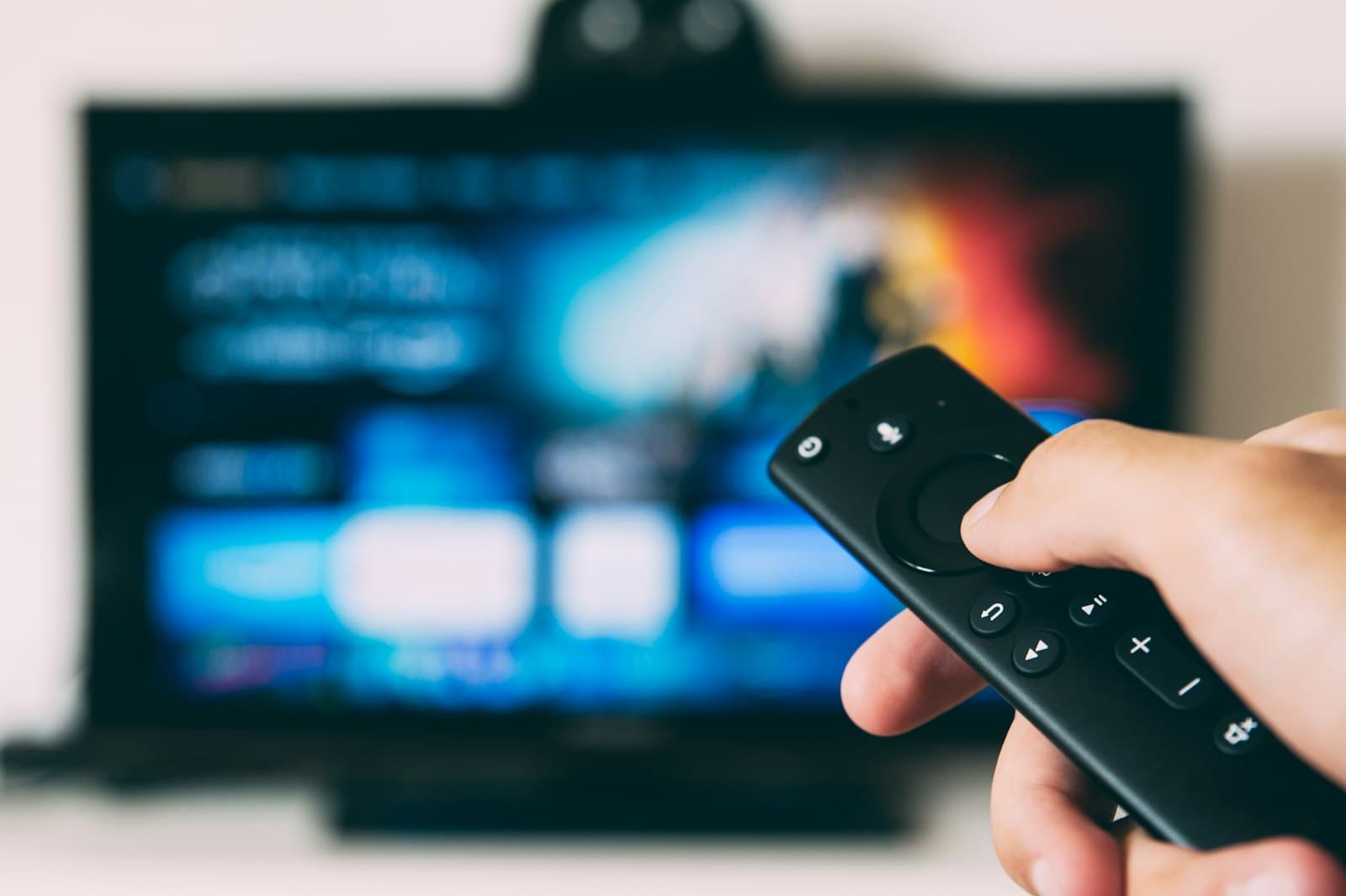
The player app is the part of IPTV you interact with every day. On a television, it has a harder job than on a phone: it must be readable from across the room, navigable with a remote and powerful enough to play high-bitrate streams smoothly on a large, sharp screen. That is why the best IPTV player for a TV is not necessarily the most popular player overall.
This guide focuses on big-screen use — smart TVs, streaming sticks and Android TV boxes — and explains which features actually matter. It deliberately avoids crowning one app, because the right choice depends on your device and your habits. If you mainly watch on a phone or tablet, our guide to choosing a mobile IPTV app is a better fit.
What makes TV players different
On a television you sit further away, use a remote instead of a touchscreen and notice every stutter on a big screen. A TV player therefore needs large, clear text, predictable navigation with directional buttons, quick channel switching and solid video decoding. Features that are nice on mobile — tiny menus, swipe gestures — become obstacles on a TV.
Feature 1: a grid-style programme guide
A good TV player shows an electronic programme guide as a grid: channels down the side, time across the top. It should scroll smoothly, show programme details when you pause on an entry and let you jump straight to a channel. On a TV, the guide is often the main way people browse, so its quality shapes the whole experience.
Guide accuracy also depends on the service's data and on the player's time settings. Our article on EPG tools and settings explains how to fix common guide problems.
Feature 2: hardware decoding options
Players typically offer a choice of video decoders — often labelled hardware, software or similar. Hardware decoding uses the device's dedicated video chip and is usually smoother and more efficient, especially for HD, Full HD and 4K streams. Software decoding can help with unusual formats but may struggle on less powerful devices.
A good player lets you change the decoder per channel or globally, so you can fix a stubborn stream without affecting everything else.
Feature 3: frame-rate matching
Content is produced at different frame rates — commonly 25 or 50 frames per second in many European regions, and 30 or 60 in the US. When the device's output does not match the content, motion can look slightly jerky, which is most noticeable in sports and slow camera pans.
Some players and devices offer automatic frame-rate matching, switching the TV's output to suit each stream. If you watch a lot of sport, this feature is worth prioritising.
Feature 4: remote-friendly navigation
Check how many button presses it takes to do everyday things: open the guide, switch between favourite channels, return to the last channel, open on-demand content. The best TV players make these actions quick and consistent, and they remember where you were.
Feature 5: favourites and custom groups
Most services offer far more channels than any household watches regularly. Favourites and custom channel groups let you build a short list of the channels you actually use. On a TV, where scrolling long lists is slow, this is one of the most valuable features a player can have.
Feature 6: on-demand support
If your service includes movies and series, make sure the player supports on-demand sections with posters, descriptions and resume playback. Some simpler players only handle live channels, which makes an included library seem to disappear.
Feature 7: catch-up support
Catch-up lets you watch programmes that aired earlier on selected channels, where the service offers it. The player has to support the catch-up method the service uses. If catch-up matters to you, confirm both sides before relying on it.
Feature 8: stability and updates
A player that crashes or freezes on your device is not the best player for you, however good its feature list. Look for apps that are actively maintained and that behave well on your specific hardware. Recent updates are a good sign; long-abandoned apps may struggle with newer devices. Our look at choosing an IPTV service in 2026 explains how player apps have matured recently.
Matching players to big-screen devices
| Device type | What to look for | Notes |
|---|---|---|
| Android TV / Google TV box | Grid guide, decoder options, frame-rate matching | The widest choice of players |
| Fire TV / Firestick | Lightweight app, good remote navigation | Storage and memory can be limited |
| Smart TV (built-in platform) | App availability for your TV's platform | Choice varies by brand, model and region |
| Apple TV | tvOS app with guide and on-demand support | Uses the App Store only |
Compatibility of any particular app with CatchON TV depends on the app, device and setup. iPhone and iPad are confirmed; for big-screen devices, check compatible devices or ask us which player suits yours.
Common mistakes with TV players
A few habits cause most big-screen frustrations:
- Leaving every channel in one giant list. Build favourites on day one; it transforms navigation with a remote.
- Ignoring storage on streaming sticks. Players cache guide data and artwork. When a stick runs low on space, everything slows down. Clearing cache or removing unused apps often helps.
- Changing many settings at once. If playback looks wrong, change one setting — usually the decoder — test, then move on. Otherwise you cannot tell what fixed it.
- Judging a player on a weak connection. A player cannot fix unstable Wi-Fi. Test on a good connection before deciding an app is the problem.
- Forgetting updates. An outdated player may not behave well after a device system update. Keep apps current.
How to test a player in one evening
- Install the player and enter your details.
- Open the guide and check it loads quickly and looks accurate.
- Switch between ten channels and time how long each takes to start.
- Watch a fast-moving channel for ten minutes and look for stutters.
- Try the decoder setting if anything looks wrong.
- Build a favourites list and see how easy it is to use.
- Open an on-demand title and test pause and resume.
If a player passes these steps on your TV, it is a strong candidate — whatever its reputation elsewhere.
Questions about choosing a TV IPTV player
Should I use hardware or software decoding on my TV box?
Start with hardware decoding, which is usually smoother and more efficient. If a particular channel shows glitches, try switching that channel to software decoding.
Why does motion look slightly jerky on some channels?
A mismatch between the content's frame rate and your device's output can cause judder. Automatic frame-rate matching, where your player and device support it, usually helps.
Can I use different IPTV players on different TVs in my home?
Yes. Each device can run the player that suits it best, as long as your plan allows enough simultaneous connections.
A player that fits your screen
The best IPTV player for your TV is the one that combines a clear grid guide, dependable decoding, remote-friendly navigation and stability on your hardware. Test it on the screen you actually use, not just on reputation. When you are ready to pair it with a service, explore CatchON TV plans or ask which player we suggest.