Devices & Setup4 min read
IPTV App Android Guide: Watching on Android Phones and Tablets
An Android phone or tablet makes a handy personal TV. Here is how to set up an IPTV app, manage data and battery, and cast to a bigger screen.
By CatchON TV Team
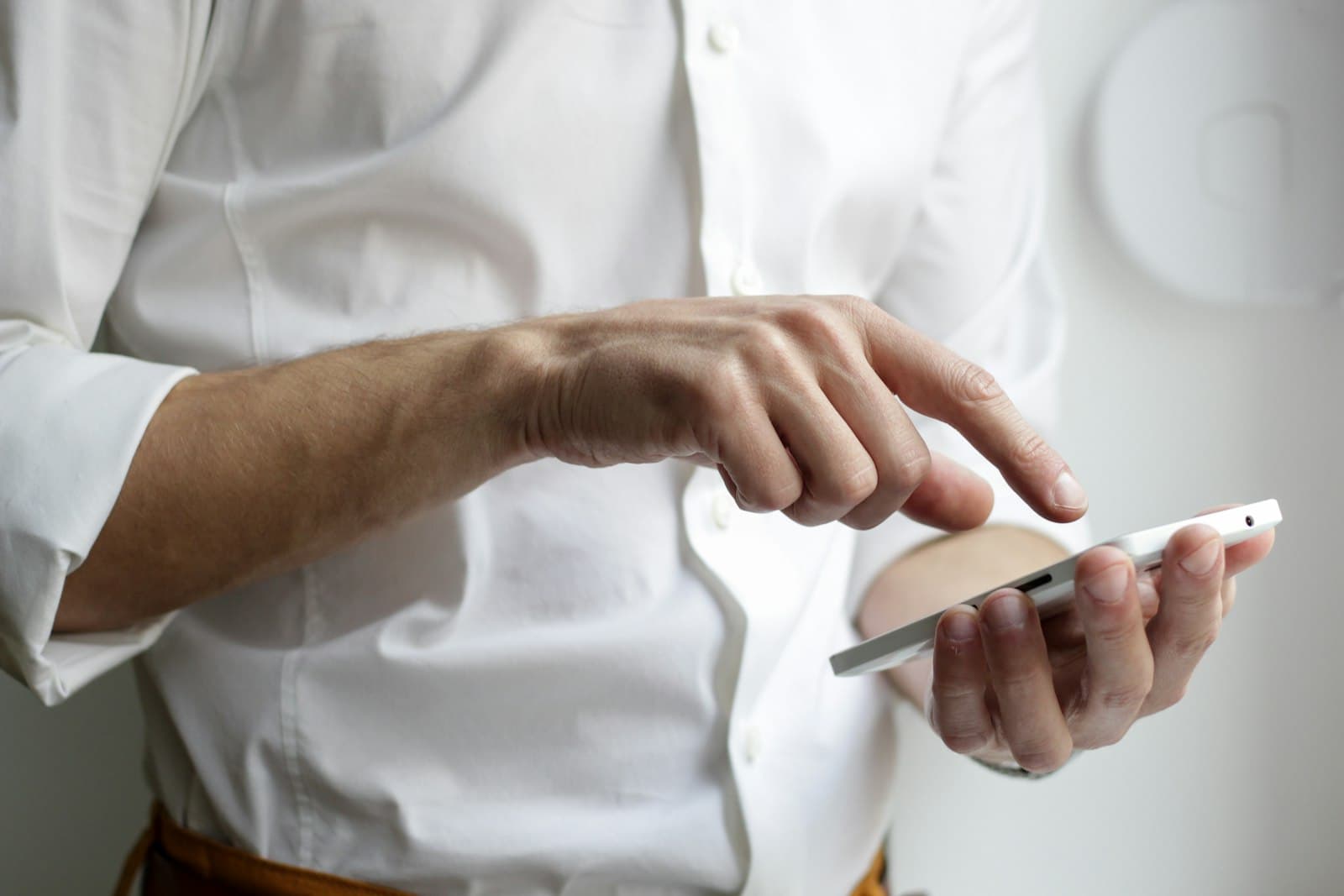
Android phones and tablets are ideal for personal viewing: the news in the morning, a match while cooking, cartoons on a long journey. Setting up an IPTV app on Android takes a few minutes, and a few extra settings make a big difference to data use, battery life and comfort. This IPTV app Android guide focuses on phones and tablets.
This guide covers Android phones and tablets. For Android TV boxes and Google TV devices, see our guide to IPTV players on Android TV.
Android phones and tablets are a device category where compatibility depends on the app and setup — check with us if you are unsure.
What you need on your phone or tablet
- An Android phone or tablet with a recent version of Android
- Wi-Fi, or mobile data if your plan allows it
- Your IPTV account details, supplied privately after activation
Step 1: choose a mobile-friendly app
Look for an app with touch-friendly navigation, a compact guide, on-demand sections and casting support. Our guide to choosing a mobile IPTV app lists the criteria that matter on phones and tablets.
Step 2: install from Google Play
Install from Google Play where possible. If an app is distributed only through its developer's website, download it only from that official source and review the permissions it requests — see installing IPTV applications safely.
Step 3: add your service on the device
Open the app, choose to add an account or playlist and select the connection type your provider specified. Copying details from a message into the app is easier on a phone than on a TV — but make sure you copy the complete details without extra spaces.
Step 4: organise for a small screen
- Build a short favourites list.
- Hide categories you do not use.
- Use the "now and next" view if the full grid feels cramped.
Step 5: manage mobile data
Video uses a lot of data. In the app's settings, look for options to:
- Choose lower quality on mobile data
- Warn before streaming on mobile data
- Prefer Wi-Fi when available
Android's own data saver and per-app data limits can add another safety net.
Step 6: save battery
- Use hardware decoding where the app offers it.
- Lower screen brightness for long sessions.
- Close the app fully when finished, so it does not keep streaming in the background.
Step 7: picture-in-picture
Many Android versions support picture-in-picture, letting you keep a small video window while using other apps. Enable it in Android's app settings and check whether your IPTV app supports it.
Step 8: casting to a TV
If your app supports casting, you can send the picture to a compatible TV or streaming device on the same Wi-Fi network. It is handy occasionally; for regular big-screen viewing, a dedicated TV app usually gives smoother playback and a better guide.
Tablets for the family
Tablets are often shared with children:
- Use the app's parental controls to PIN-protect categories.
- Create a favourites list of suitable channels.
- Consider Android's family or kids' profiles where available.
Troubleshooting on Android mobile
| Problem | Try |
|---|---|
| Playback stops when the screen turns off | Check the app's background playback setting and battery optimisation |
| High data use | Lower quality on mobile data; enable warnings |
| Phone gets hot | Enable hardware decoding; remove case during long sessions |
| Cast button missing | Check both devices are on the same Wi-Fi; confirm the app supports casting |
| "Too many connections" | Close the app on other devices you are not watching |
Travelling with your Android device
A phone or tablet is often the screen you take away from home. Before travelling:
- Download nothing you expect to stream — live TV needs a connection, so check hotel or holiday Wi-Fi quality where you can.
- Set quality to match weaker connections, since shared hotel Wi-Fi is often slower at peak times.
- Check the guide's time zone if you cross time zones; listings may need an offset change.
- Keep your account details private on shared networks, and avoid entering them on public or borrowed devices.
- Remember roaming charges if you use mobile data abroad.
Remember your connection limit
A phone streaming in a pocket counts as one of your plan's simultaneous devices. Stop playback when you are not watching, so connections stay free for the rest of the household. CatchON TV plans cover one to five devices — see plan options.
Questions about IPTV apps on Android phones and tablets
Why does my IPTV app stop when I lock my Android phone?
Android battery optimisation or the app's background settings may pause playback. Check the app's background playback option and Android's battery settings for that app.
How can I reduce mobile data use when watching IPTV on Android?
Choose lower quality on mobile data, enable data warnings in the app and use Wi-Fi whenever possible.
Can I cast IPTV from my Android phone to my TV?
If your app supports casting and your TV or streaming device is a compatible receiver on the same Wi-Fi network, yes.
Your personal screen
An IPTV app on an Android phone or tablet is a flexible personal TV. Choose a mobile-friendly app, install it safely, manage data and battery, and use casting or picture-in-picture when they help. When you are ready, see CatchON TV plans.